18+. Full T&C's apply. Sports bonus: 100% match up to $500. Casino bonus: 100% match up to $500. Enter promo code NEW200 at deposit and get up to a $1000 bonus. Valid on your first three (3) deposits. Available for all deposit methods. Minimum deposit of $50.
18+. Full terms apply. The Bet Back Bonus is available for new customers on first-time deposits of $50 or more. To redeem, select the offer in the cashier while completing your first deposit. Make your pick(s) in the Sportsbook and then select ‘Opt In to Use Your Bonus’. A Bet Back Bonus pop-up will display, select ‘Claim’ and then enter the risk amount to place your bet. If it wins, you keep your profits. If it loses, get 100% of your risk refunded as Free Play with only 1-time rollover. Free Play can then be used to place bets in the Sportsbook and earn cash. Additional T&Cs apply, please visit MyBookie to access the Help Center or contact Live Chat for more details.
A verification request deserves verification of its own.
A withdrawal is on hold, and a message from an unfamiliar account asks for a passport photo by reply email. The deadline sounds urgent; the address looks less convincing. Rather than follow the message’s link, the account holder can open the operator’s app or type its known website address and check for the same request in the account. If it is absent, official support can confirm whether the request is genuine and where documents belong.
Switching operators to avoid the request may be tempting, but the safety trade-offs of no-KYC sportsbooks deserve a separate look. If the document is required, an authenticated upload portal is safer than a reply email or chat attachment, which can leave another copy sitting in a message history.
Confirm the request and its scope
Open the sportsbook through its saved app or a manually entered website address, then check the account’s verification area. A genuine request should be visible there, or support reached through that same app or site should be able to confirm it. Do not use a link or phone number supplied only in the message requesting documents.
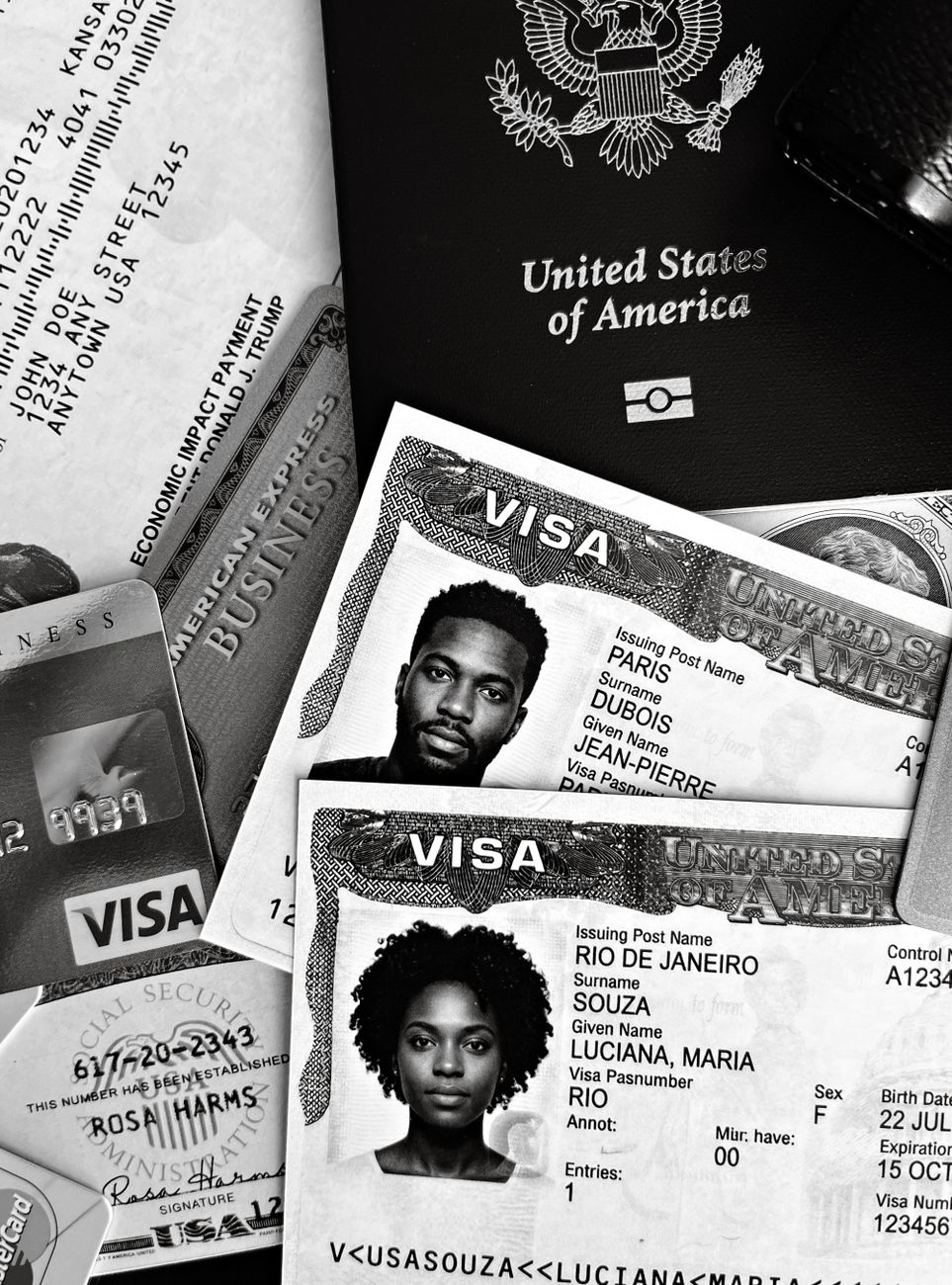
Before uploading anything, check four details:
Top Crypto Sportsbooks for October 2026
BetUS
200% up to $1,000
Code: NEW200
18+. Full T&C's apply.
18+. Full T&C's apply. Sports bonus: 100% match up to $500. Casino bonus: 100% match up to $500. Enter promo code NEW200 at deposit and get up to a $1000 bonus. Valid on your first three (3) deposits. Available for all deposit methods. Minimum deposit of $50.
18+. Full terms apply. The Bet Back Bonus is available for new customers on first-time deposits of $50 or more. To redeem, select the offer in the cashier while completing your first deposit. Make your pick(s) in the Sportsbook and then select ‘Opt In to Use Your Bonus’. A Bet Back Bonus pop-up will display, select ‘Claim’ and then enter the risk amount to place your bet. If it wins, you keep your profits. If it loses, get 100% of your risk refunded as Free Play with only 1-time rollover. Free Play can then be used to place bets in the Sportsbook and earn cash. Additional T&Cs apply, please visit MyBookie to access the Help Center or contact Live Chat for more details.
Documents: Which items are required, and does the account page specify the sides, pages, or details needed?
Purpose: Is the request tied to a clear task, such as confirming identity, address, or a payment method?
Provider: Will the upload stay in the sportsbook account, or does the operator name a separate verification service and direct customers to it?
Privacy notice: Is there an accessible explanation of how the documents will be used, shared, and retained?
The request should fit its stated purpose. For example, proof of address may call for a recent statement showing a name and address; a demand for every page of an unrelated financial record deserves clarification. A third-party upload page is not automatically suspicious, but its role should be confirmed through the operator’s own account or support channel. For a broader check, see how to assess whether sportsbook KYC is safe. If the requester, document list, or reason remains unclear, pause before submitting and ask known support for specifics.
Secure the account before uploading
A document upload can be legitimate and still be risky if someone else has access to the account receiving it. Before submitting identity files, the account holder should replace any reused password with a unique password, ideally generated and saved in a password manager. A strong password on the email account linked to the service matters too: that inbox may receive verification links and status updates.
Enable multifactor authentication wherever available. An authenticator app or passkey is a good choice when supported; SMS is still worth enabling if it is the only option. Save backup codes somewhere separate from the documents being uploaded.
Check recent sign-ins and active sessions for unfamiliar devices or locations, then sign out of sessions that are not recognized. Review the recovery email address and phone number as well. Someone with account access may be able to see whether verification succeeded, change contact details, or redirect a request for additional documents. If a sign-in or recovery detail looks wrong, pause the upload, secure the account, and contact the service through its known app or website.
Prepare clear, limited images
Use the verifier’s document list rather than photographing everything that might seem relevant. Capture only the requested sides or pages, with every required field visible. Leave unrelated documents and extra pages out of the upload.
Place the document on a plain surface under even light. Keep all four edges in frame, hold the camera steady, and check small print for blur or glare. Review the saved image—not just the camera preview—before submitting it.
Do not edit required details to fix a poor image; take another photo instead. Cropping away desk clutter is fine only if it leaves the full required document visible. Ask the verifier before masking a field or adding a watermark, since either change may cause a rejection.
Wallet screenshots deserve the same restraint as extra ID pages. What a sportsbook can learn about a wallet helps explain why an unrelated address or transaction history should stay out of the upload. If a request goes beyond the confirmed document list, pause and ask verified support which fields or pages are needed.
Secrets are not identity documents
Never provide a seed phrase, private key, or password as identity proof—even if a message claims it is required for KYC.
Upload through a verified account portal
Use a personal device with an up-to-date browser and a private home connection or mobile data. A shared computer may retain downloaded files or an active account session; public Wi-Fi adds another avoidable uncertainty. If neither the device nor the connection is trustworthy, wait rather than rushing the upload.
Open the provider’s known app or type its established website address directly into the browser. Sign in and find the document request inside the account. Do not treat a link in an email, text, search result, or QR code as confirmation of where to upload, even if the message accurately describes the request.
Immediately before selecting a file, check the address bar again. The domain should match the verified site, with no misspellings or extra words. If the account sends the applicant to a separate verification service, check that the service’s name matches the provider named in the account instructions. A redirect to an unfamiliar site is a reason to stop and confirm the route through the provider’s established support channel.
Upload only through the account portal or the designated flow it opens. After submission, look for an on-screen confirmation or status update, then sign out if the device is shared. A follow-up request to email the same images should be checked independently before any further disclosure.
A padlock is not an identity check
HTTPS indicates an encrypted connection to the site shown in the address bar. A convincing fake site can use HTTPS too; the address and the upload route still need checking.
Keep a record without keeping extra copies
Once the portal confirms receipt, record the submission date, portal or provider, and confirmation reference in a secure note. A case number, if provided, is useful too. Those details can help support find the submission without an extra scan of the identity document kept “just in case.”
An upload confirmation does not necessarily mean approval. A document might be rejected because an edge was cut off or the image was unreadable. Before sending anything again, open the known app or website directly and check the account status. If a message names a different portal, provider, or document, confirm the change through verified support rather than following its link—even if it quotes the earlier case number.
For a genuine retry, submit only the corrected item requested through the verified account route. If the reason for failure is unclear, ask support what needs fixing before sharing more. Record any new date and reference instead of accumulating spare document copies.
Remove temporary document copies
Once the portal confirms receipt and a minimal reference record is saved, delete the working images and files used for submission. Check the camera roll, Downloads folder, scanner app, and any folder used to transfer or crop images. An exported PDF may remain after its source photo is deleted.
Shared devices: Remove local files and sign out of the account. Check recent files and the device’s trash, especially if other people use it.
Cloud sync: Check whether photos or files copied automatically to a cloud drive, shared album, or backup service. Remove unwanted copies from synced folders and recently deleted bins; check other signed-in devices too.
Messages: Delete drafts and attachments used to move files between devices. Deleting a local message may not remove a copy sent elsewhere.
This cleanup limits copies under the account holder’s control. It does not delete documents already submitted to the provider. An operator may retain verification records to meet legal requirements or address fraud and account disputes. Its privacy notice and retention or deletion terms offer more realistic expectations about how long records remain and whether a deletion request is possible. For broader context, see safe crypto betting and privacy guidance.
Step List
Verify the requester
The request should appear in the provider’s known app or website, not only in an email or message.
Check the document scope
Each requested document should have a clear purpose; unexpected extra pages or details are a reason to stop.
Confirm the account
The signed-in account should be the one undergoing verification.
Inspect the destination
Before submission, confirm that the upload page belongs to the verified service, including its web address.
Review the images
Make sure they are legible, contain the requested documents, and show no unrelated records or account secrets.
If any check fails, pause and contact support through a previously known app or website.
Final check
Submit only when every check passes
A document sent to a suspicious destination cannot be recalled. Secure the affected account, report possible identity exposure to the document issuer or an appropriate identity-theft service, and watch for signs of misuse. A delayed verification is preferable to sending more information while the destination remains uncertain.
Top Crypto Sportsbooks for October 2026
BetUS
200% up to $1,000
Code: NEW200
18+. Full T&C's apply.
18+. Full T&C's apply. Sports bonus: 100% match up to $500. Casino bonus: 100% match up to $500. Enter promo code NEW200 at deposit and get up to a $1000 bonus. Valid on your first three (3) deposits. Available for all deposit methods. Minimum deposit of $50.
18+. Full terms apply. The Bet Back Bonus is available for new customers on first-time deposits of $50 or more. To redeem, select the offer in the cashier while completing your first deposit. Make your pick(s) in the Sportsbook and then select ‘Opt In to Use Your Bonus’. A Bet Back Bonus pop-up will display, select ‘Claim’ and then enter the risk amount to place your bet. If it wins, you keep your profits. If it loses, get 100% of your risk refunded as Free Play with only 1-time rollover. Free Play can then be used to place bets in the Sportsbook and earn cash. Additional T&Cs apply, please visit MyBookie to access the Help Center or contact Live Chat for more details.
Tony is the founder and author behind Betting52, where he writes about crypto sports betting, offshore sportsbooks and the wider world of online sports betting. His work covers crypto sportsbook reviews, Bitcoin and cryptocurrency payment methods, betting bonuses, sportsbook comparisons, betting odds, markets and practical betting guides. Tony's aim is to make sports betting information easier to understand, helping readers research sportsbooks, compare their options and make more informed decisions before placing a bet. Alongside sportsbook and crypto betting content, he is interested in the technology, payment systems and security considerations shaping the future of online sports betting.